How to change a personal YouTube channel to a brand channel
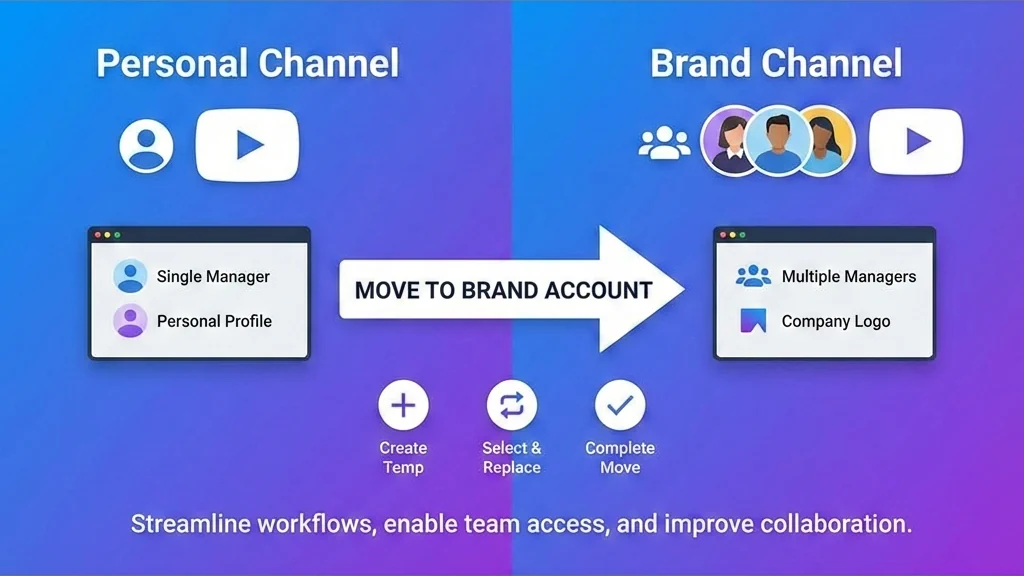
A brand account is a channel created specifically for your company or business. This account type differs from a personal Google account. Multiple people can manage brand channels, while a single user manages a personal channel.
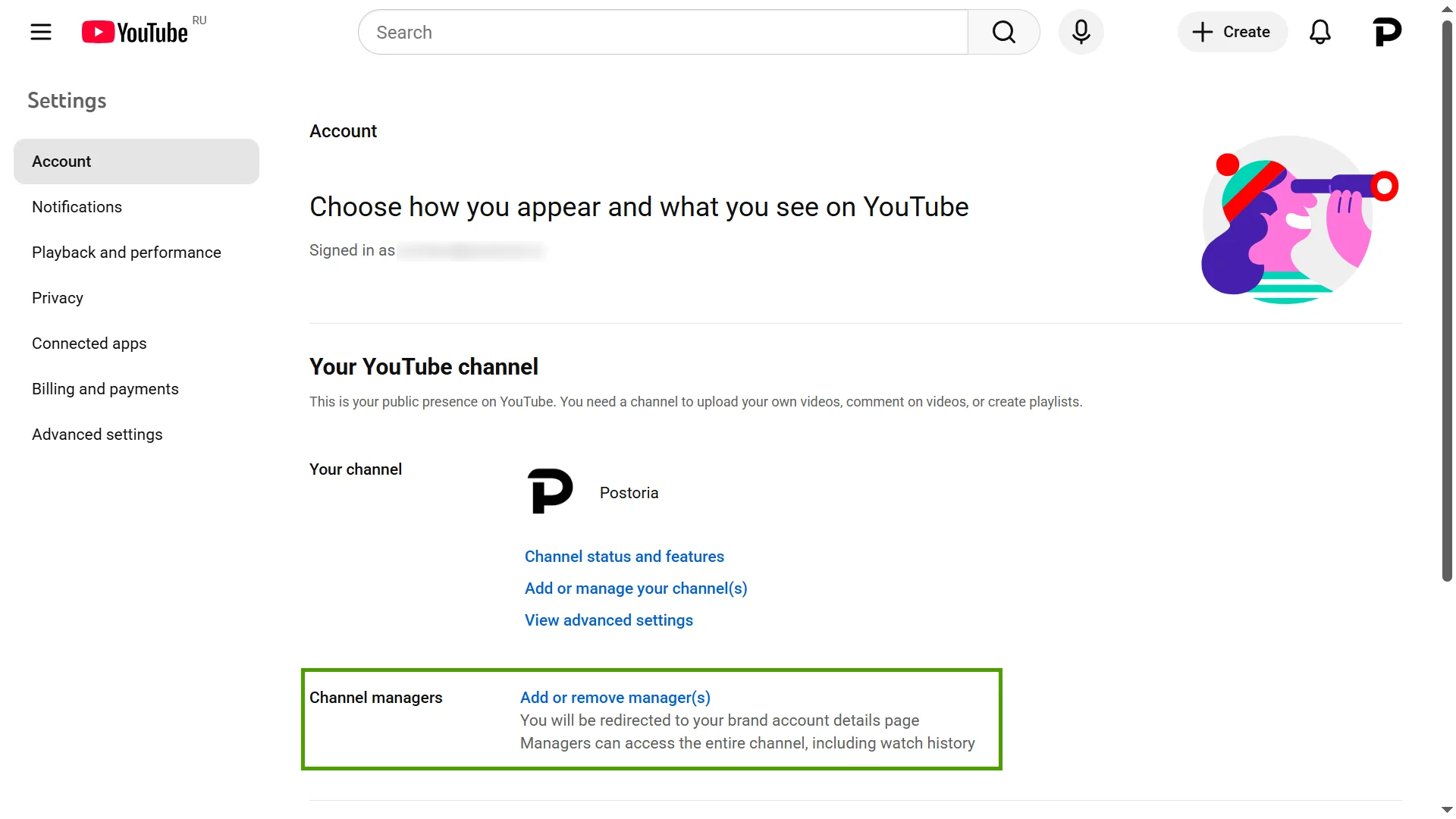
You can check whether your channel is already a brand channel by looking for it in Google Brand Accounts; alternatively, open your channel’s page and see if you have the option to add or remove managers—if you do, you already have a brand channel and can use it with Postoria’s YouTube scheduling and automations; if not, follow the steps below.
Step-by-step: convert a personal channel to a brand channel on YouTube
1. Create a temporary brand channel
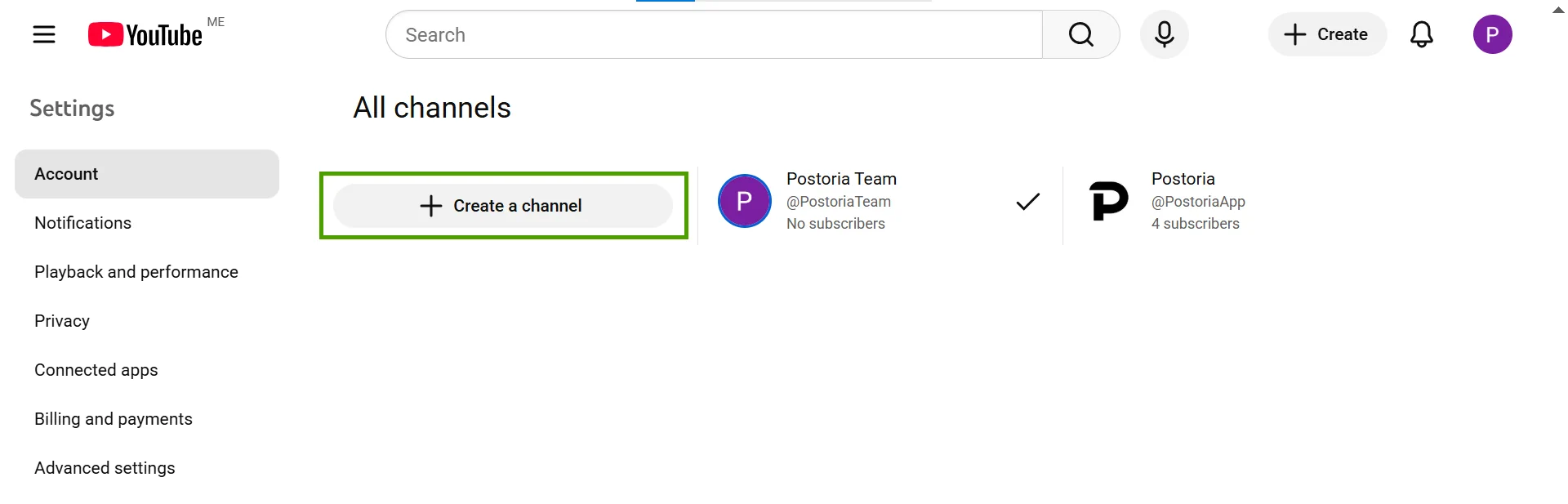
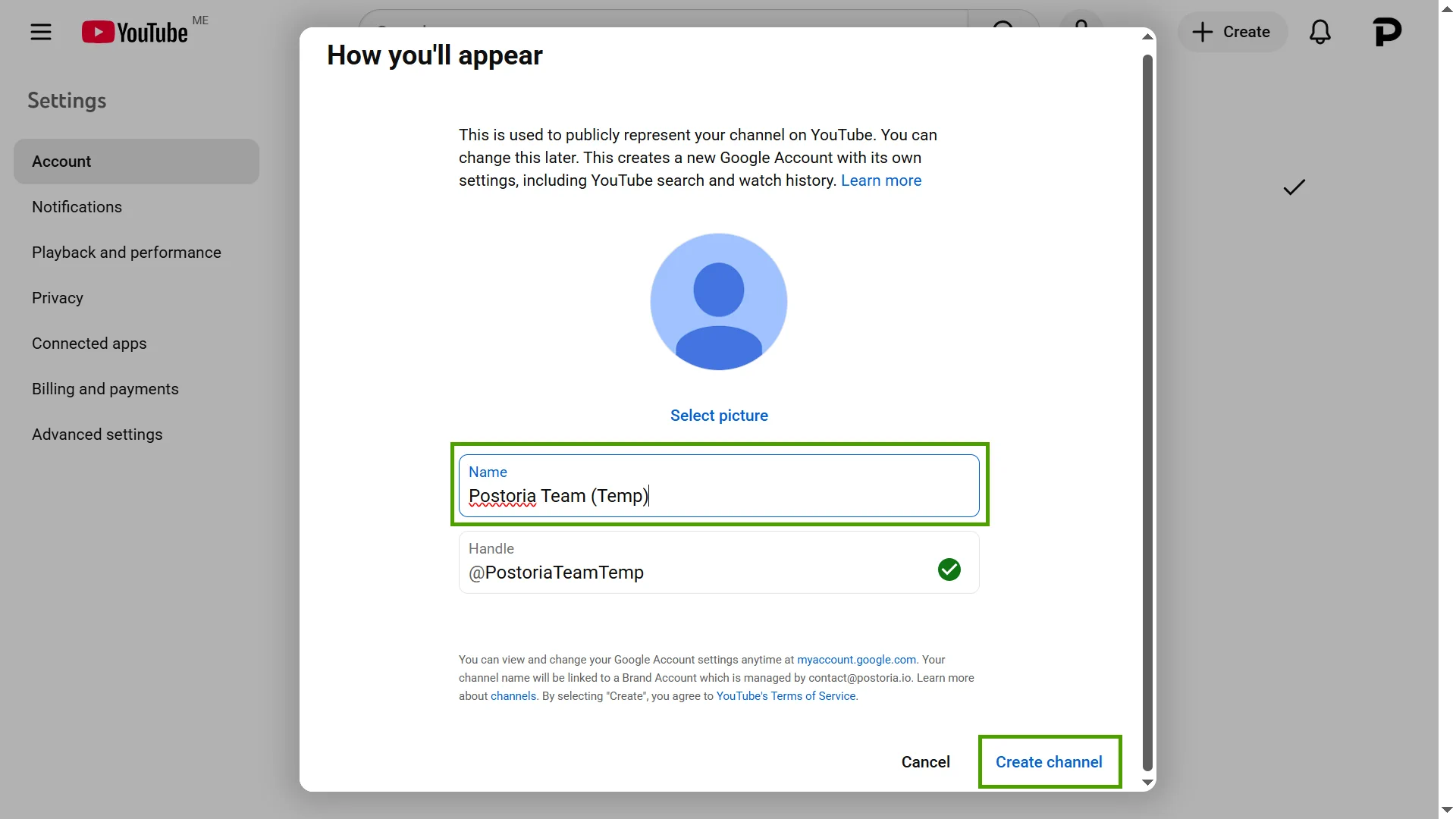
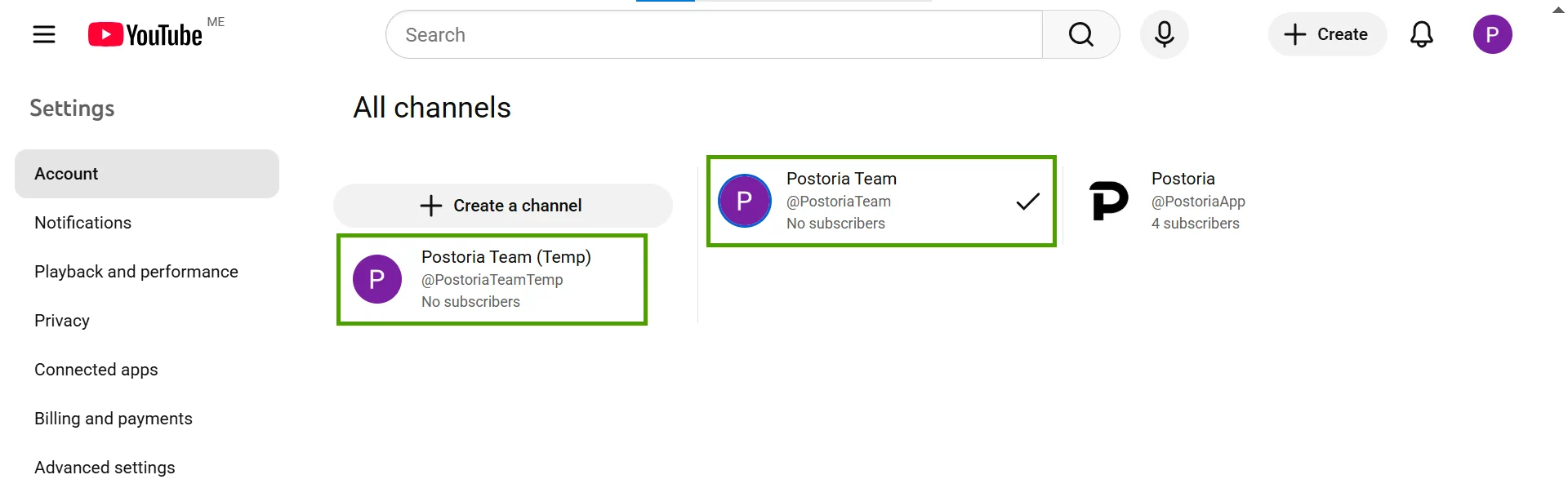
Go to the YouTube channel switcher, select Create a channel, and create a temporary brand channel. After it’s created, return to the channel switcher to confirm you can see both your personal channel and the new brand channel.
2. Start the move to a brand account
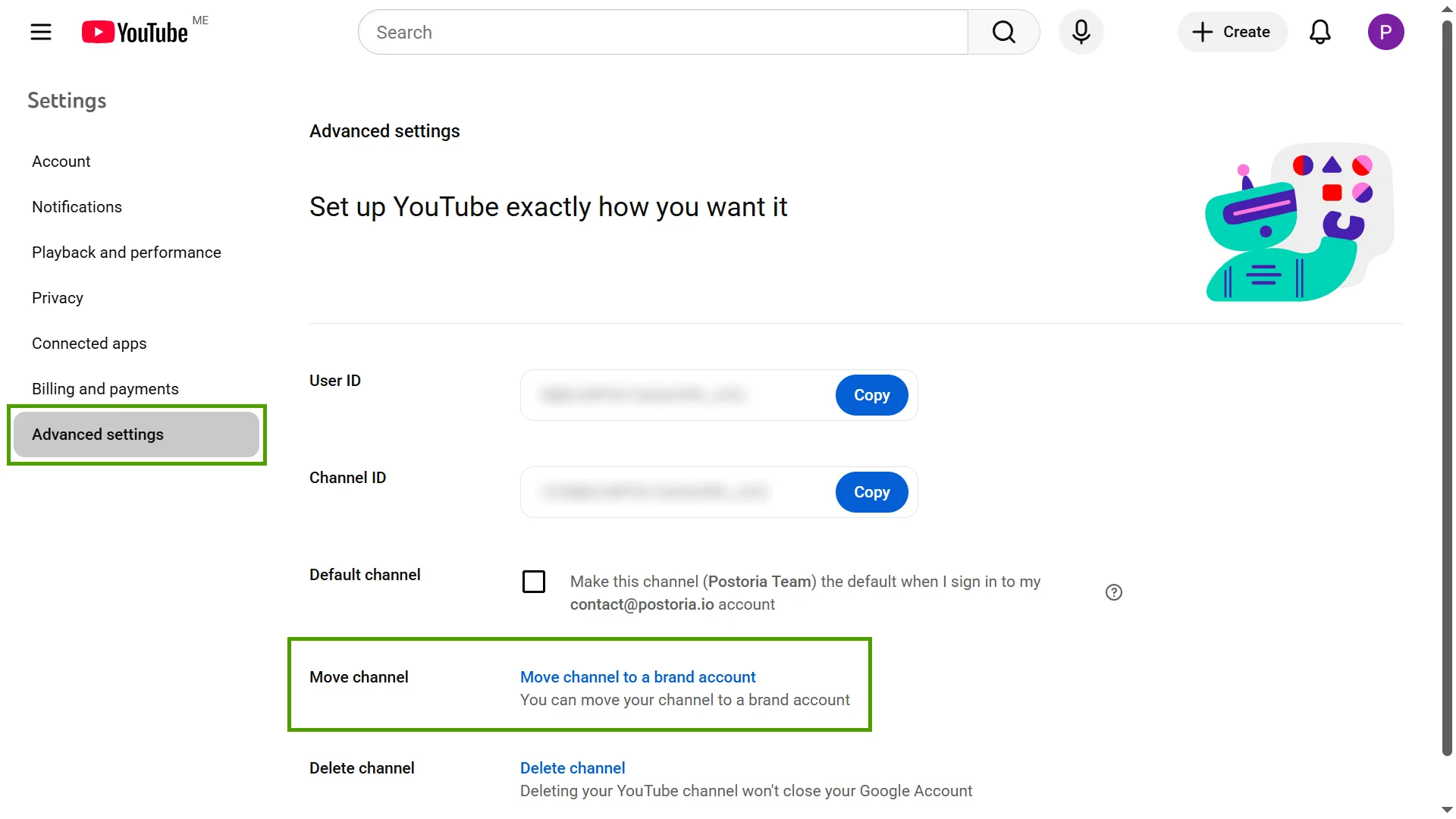
Go to your personal channel, select Settings, then Advanced settings. In the Move channel section, select Move channel to a brand account.
3. Select the brand channel
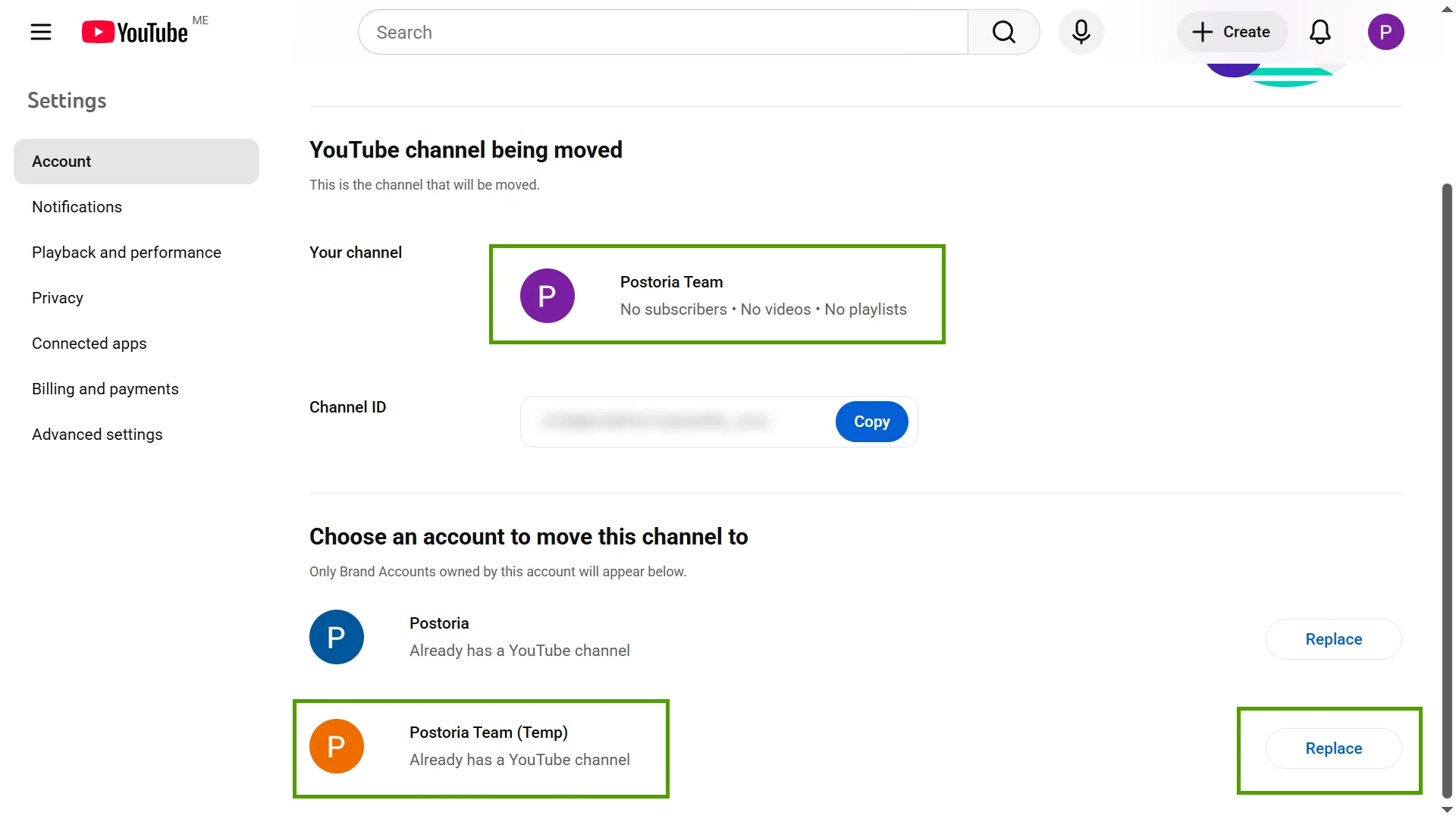
Select the temporary brand channel from the list, then select Replace.
4. Delete the temporary channel
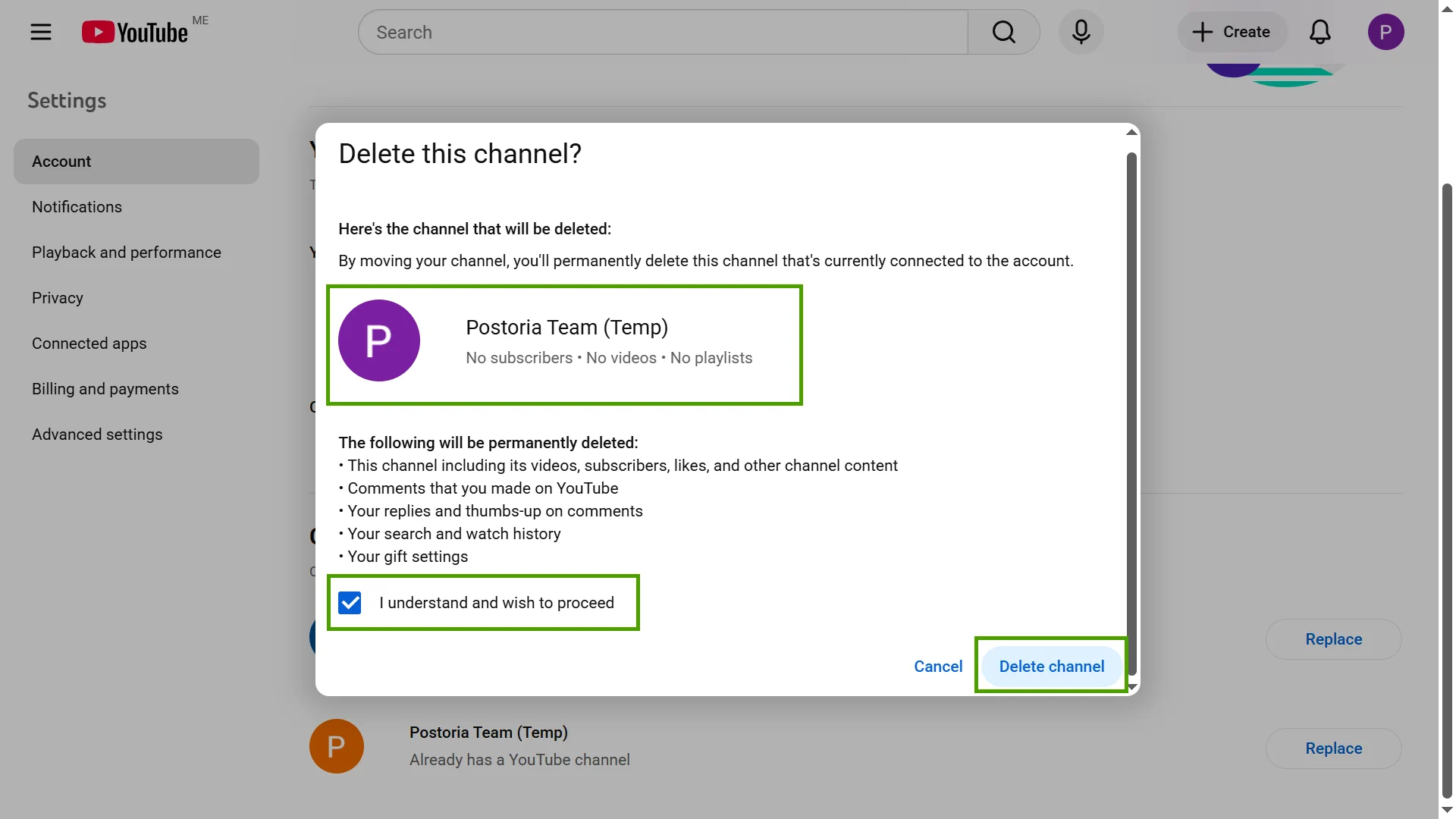
Confirm the temporary channel deletion so your main channel is the only active channel you use going forward.
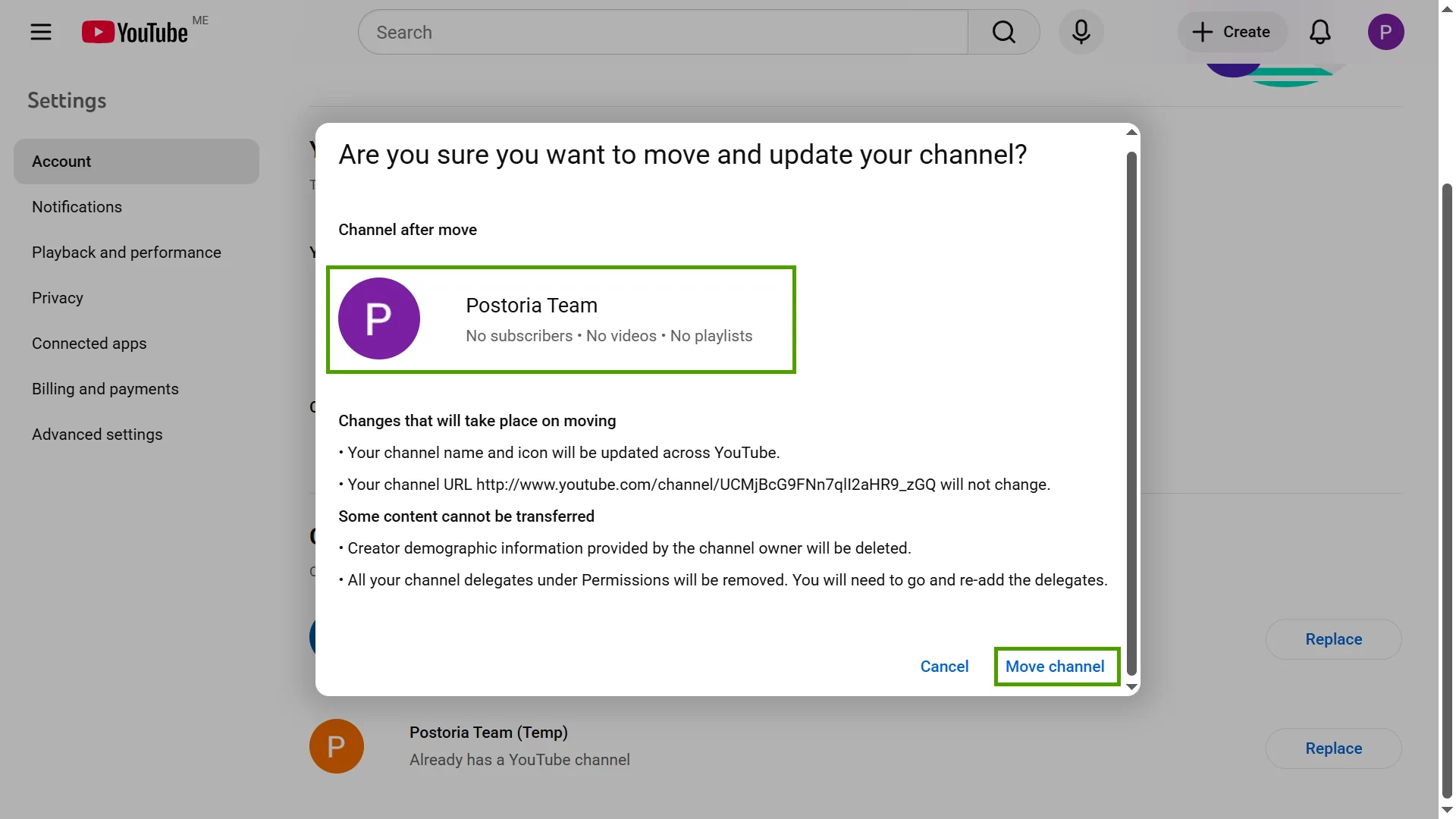
5. Complete the move
Select Move channel. Your personal channel will now officially become a brand channel and will be ready for team collaboration.
Optional: add managers to your brand channel
Go to your YouTube account settings. In Channel managers, select Add or remove manager(s), then Manage permissions. Select the add-user icon, enter the email address, choose the Manager role, then select Invite and Done. Google may ask you to sign in again for security verification.
The invited manager will need to accept the invitation before they can access the channel.
Why convert a personal channel to a brand channel?
Moving from a personal channel to a brand channel provides several advantages:
- Multiple management: Several employees can manage your channel.
- Planned publishing: Brand channels are better suited for team-based scheduling workflows.
- Better control for businesses: A brand channel simplifies collaboration, reduces publishing mistakes, and makes it easier to integrate with Postoria.
Once the move is complete, your channel is ready for team access and a more structured publishing workflow.