How to bulk upload social media posts from a spreadsheet
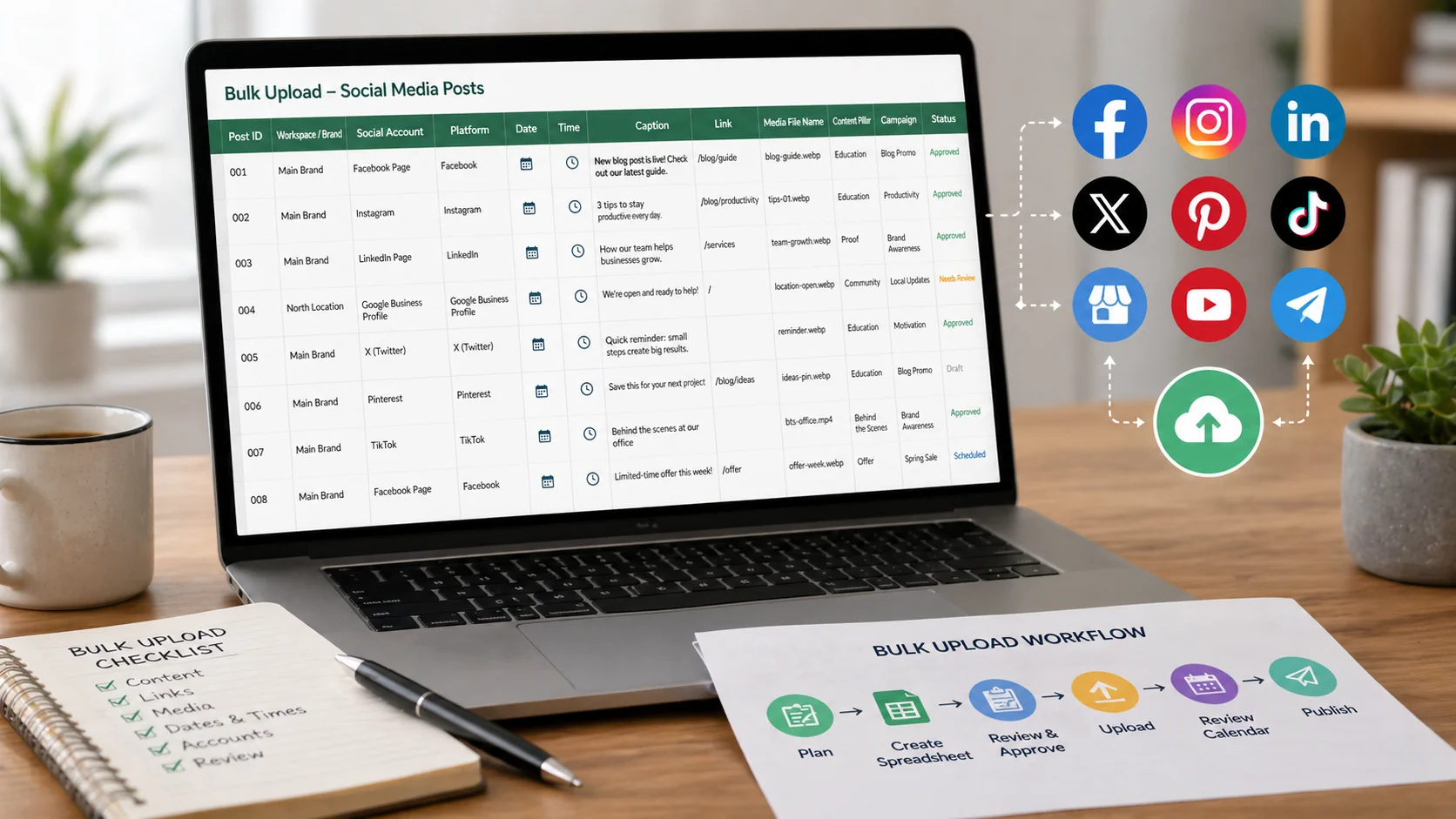
Bulk uploading social media posts can turn a large publishing plan into a manageable workflow. Instead of creating every post manually, you prepare a spreadsheet, review it carefully, and upload many posts at once.
This is especially useful for agencies, ecommerce stores, publishers, franchises, creators with multiple brands, and small teams planning content in batches.
The key is preparation. A clean spreadsheet can save hours. A messy spreadsheet can create broken links, wrong dates, duplicate captions, and posts assigned to the wrong account.
When bulk uploading makes sense
Bulk uploading is helpful when you have many posts that follow a structured plan.
Good use cases include:
- Monthly content calendars
- Agency client calendars
- Multi-location posts
- Product launches
- Seasonal campaigns
- Blog promotion
- Event reminders
- Ecommerce product posts
- Evergreen content libraries
- Reposting approved content with variations
Bulk uploading is not ideal for sensitive announcements, crisis communication, or posts that need heavy creative judgment at the last minute.
Start with the campaign goal
Before opening a spreadsheet, decide what the batch is supposed to accomplish.
Examples:
- Promote a new product line
- Fill next month’s evergreen calendar
- Announce weekly blog posts
- Publish local updates for several branches
- Schedule educational posts for a service business
- Share video clips from a webinar or podcast
This goal affects the columns you need, the platforms you choose, and the review process.
Recommended spreadsheet columns
Your exact columns may depend on the tool you use, but a strong bulk upload spreadsheet usually includes:
Post ID
A unique internal number for each row. This makes review easier.
Workspace or brand
Useful when managing several brands, clients, or locations.
Social account
The account or page where the post should publish.
Platform
Facebook, Instagram, LinkedIn, Google Business Profile, Threads, X (Twitter), Pinterest, YouTube, TikTok, Telegram, Bluesky, and Tumblr.
Date
The intended publish date.
Time
The intended publish time, including time zone if needed.
Caption
The main post text.
Link
The URL included in the post, if relevant.
CTA
The action you want the audience to take.
Media file name or URL
The image, video, or graphic attached to the post.
Content pillar
Education, proof, product, community, trust, timely content, or another category.
Campaign
The campaign or theme the post belongs to.
Status
Draft, needs review, approved, or ready to upload.
Notes
Any special instructions, tags, or approval comments.
Keeping the spreadsheet structured helps you review the batch before it enters your publishing tool.
Example row
A row for a service business might look like this:
- Post ID: 018
- Workspace: Main brand
- Social account: Facebook Page
- Platform: Facebook
- Date: 2026-05-08
- Time: 10:00 AM
- Caption: “Not sure when to book your first consultation? Here are three signs it may be time.”
- Link: booking page URL
- CTA: Book a consultation
- Media file: consultation-checklist.webp
- Content pillar: Education
- Campaign: May appointment push
- Status: Approved
- Notes: Use local service area language
The post is specific enough to upload, review, and schedule without guessing.
Clean the spreadsheet before uploading
Before uploading, check the spreadsheet carefully.
Look for:
- Empty required fields
- Incorrect dates
- Wrong time zones
- Duplicate rows
- Duplicate captions posted too close together
- Missing media files
- Incorrect file names
- Broken links
- Unsupported file types
- Posts assigned to the wrong account
- Captions that are too long for the platform
- Hashtags that do not match the topic
- Old campaign names
- Placeholder text
This review step protects you from publishing mistakes at scale.
Write captions for bulk upload carefully
When preparing many captions at once, it is easy for them to sound repetitive.
Use variations in:
- Hook
- Opening sentence
- CTA
- Example
- Format
- Length
- Platform style
- Audience segment
For example, do not create ten posts that all begin with “Did you know?” Instead, rotate between questions, direct statements, short stories, checklists, and useful tips.
If you use AI to generate caption variations, review every caption for accuracy and brand voice before upload. Postoria offers AI captions on paid plans, but human editing is still important.
Prepare media files
Media organization is one of the most common bulk upload problems.
Use clear file names such as:
- may-service-tip-01.webp
- product-launch-demo-03.mp4
- client-story-before-after-02.webp
- gbp-offer-week-2.webp
Avoid vague names like:
- final-final.png
- image1.jpg
- newpost.mp4
- screenshot.png
If your team uses watermarks, apply them before upload or use a tool that supports watermarking in your workflow.
Postoria includes a media library and watermarking features, which can help keep assets organized and brand-safe before posts are scheduled.
Use content pillars to avoid imbalance
A spreadsheet can hide content imbalance because you are looking at rows instead of a calendar.
Add a content pillar column so you can quickly see whether the batch includes too much of one type of post.
A healthy batch may include:
- Educational posts
- Product or service posts
- Proof posts
- Behind-the-scenes posts
- Community posts
- Offer posts
- Evergreen reminders
If every row is promotional, adjust the batch before upload.
Review the calendar after upload
Bulk upload is not the final step. After uploading, review the calendar visually.
Check:
- Are posts landing on the right dates?
- Are there too many posts on one day?
- Are important campaign days covered?
- Are platforms balanced?
- Are duplicate posts too close together?
- Are visual assets displaying correctly?
- Are posts still marked for review if needed?
In Postoria, bulk uploading is available on paid plans and can be combined with the visual calendar, workspaces, posting groups, and analytics. That makes it easier to upload many posts, then confirm how they fit into the full publishing schedule.
Add approval rules
For teams and agencies, bulk uploads should still include approvals.
A simple approval process:
- Content owner prepares the spreadsheet
- Manager reviews captions and links
- Designer confirms media files
- Client or stakeholder approves campaign posts
- Scheduler uploads approved rows
- Final calendar review happens before publishing
Do not upload unapproved posts unless your workflow clearly marks them as drafts.
Bulk upload checklist
Before upload:
- Goal is clear
- All required columns are included
- Dates and times are correct
- Platforms and accounts are accurate
- Captions are proofread
- Links are tested
- Media file names match the files
- Content pillars are balanced
- Approval status is clear
- Sensitive posts are reviewed manually
- The uploaded calendar is checked visually
Conclusion
Bulk uploading social media posts is a powerful workflow when your content is organized. Start with a clear campaign goal, prepare a clean spreadsheet, review every required field, organize media files, and check the calendar after upload.
Used well, bulk uploading helps teams save time while keeping control over quality, timing, and brand consistency.