How to auto-post from WordPress to social media

Publishing blog content consistently across Instagram, Facebook, X (Twitter), LinkedIn, Threads, and other social networks can take a lot of time, especially if you do it manually.
The good news is that if your site runs on WordPress, you can automate this process using RSS.
This guide explains how WordPress RSS works and how to set up automated social media posting using Postoria.
If you prefer a video walkthrough, watch the tutorial below:
What is RSS in WordPress
RSS (Really Simple Syndication) is a built-in WordPress feature that automatically generates a feed of your latest content.
Most WordPress sites have a default RSS feed at yourwebsite.com/feed/.
The feed updates automatically whenever you publish a new post.
For more details, see the official WordPress guide on feeds.
How to set up WordPress RSS automations in Postoria
A WordPress site like NASA can provide an RSS feed that Postoria can use as the source for an RSS automation.
Once the feed is connected, Postoria can check it for updates, detect newly published articles, and send them to Instagram, Facebook, X (Twitter), LinkedIn, Threads, and other social networks based on your automation settings.
Here’s how to set it up:
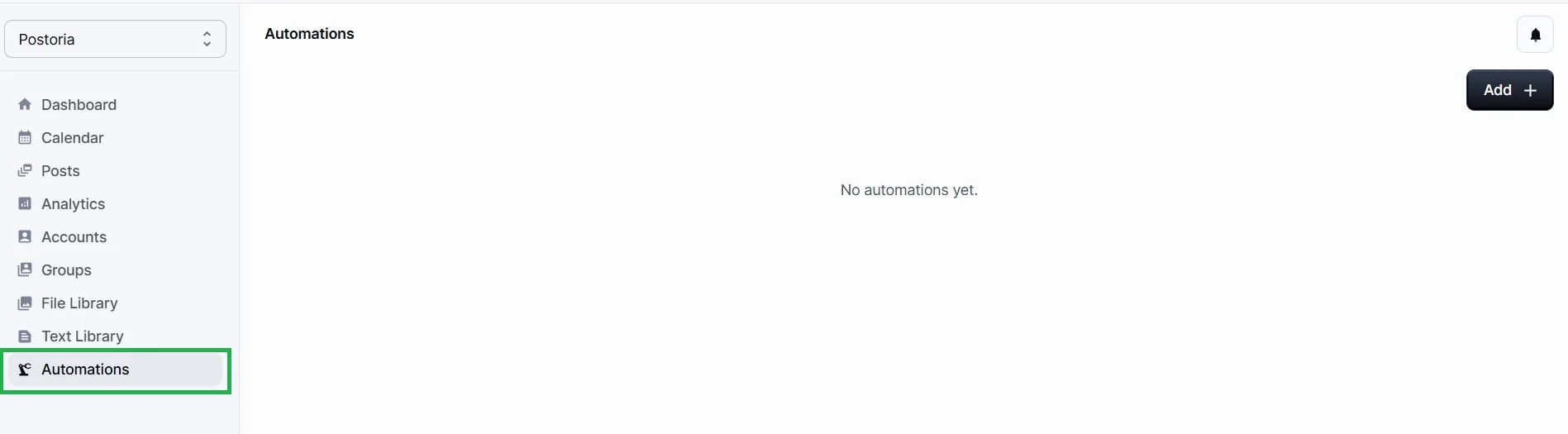
Step 1: Log in and open Automations
- Go to your Postoria dashboard
- Open the Automations page
- Note: Automations are available on Pro and Agency plans
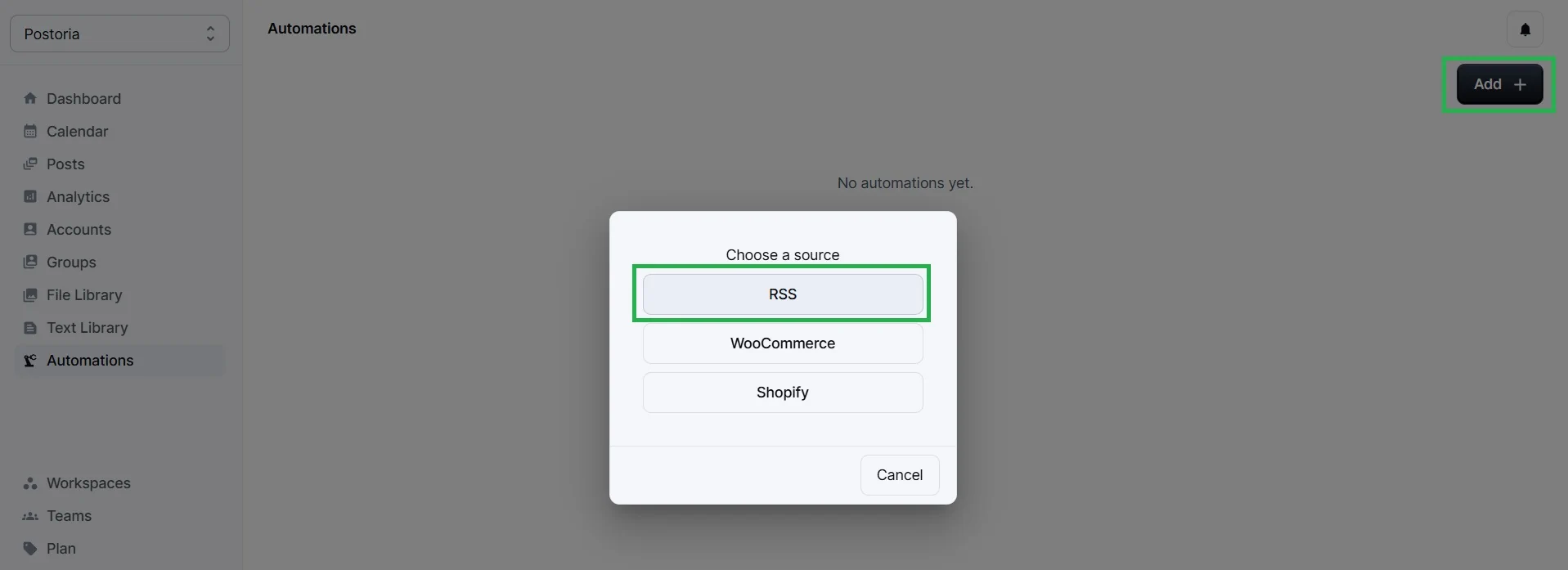
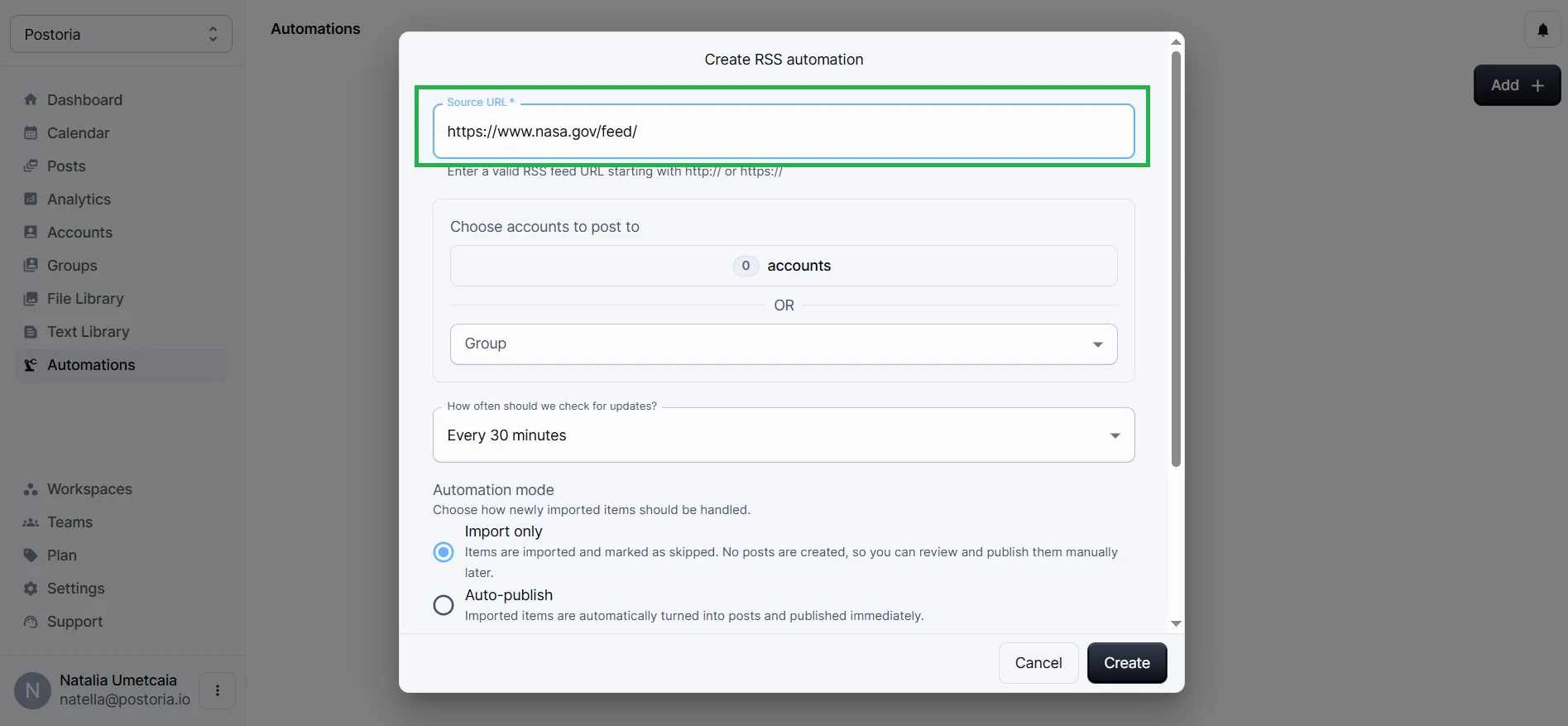
Step 2: Create a new RSS automation
- Click Add
- In Source URL, enter your RSS feed. In this example, we use https://www.nasa.gov/feed/.
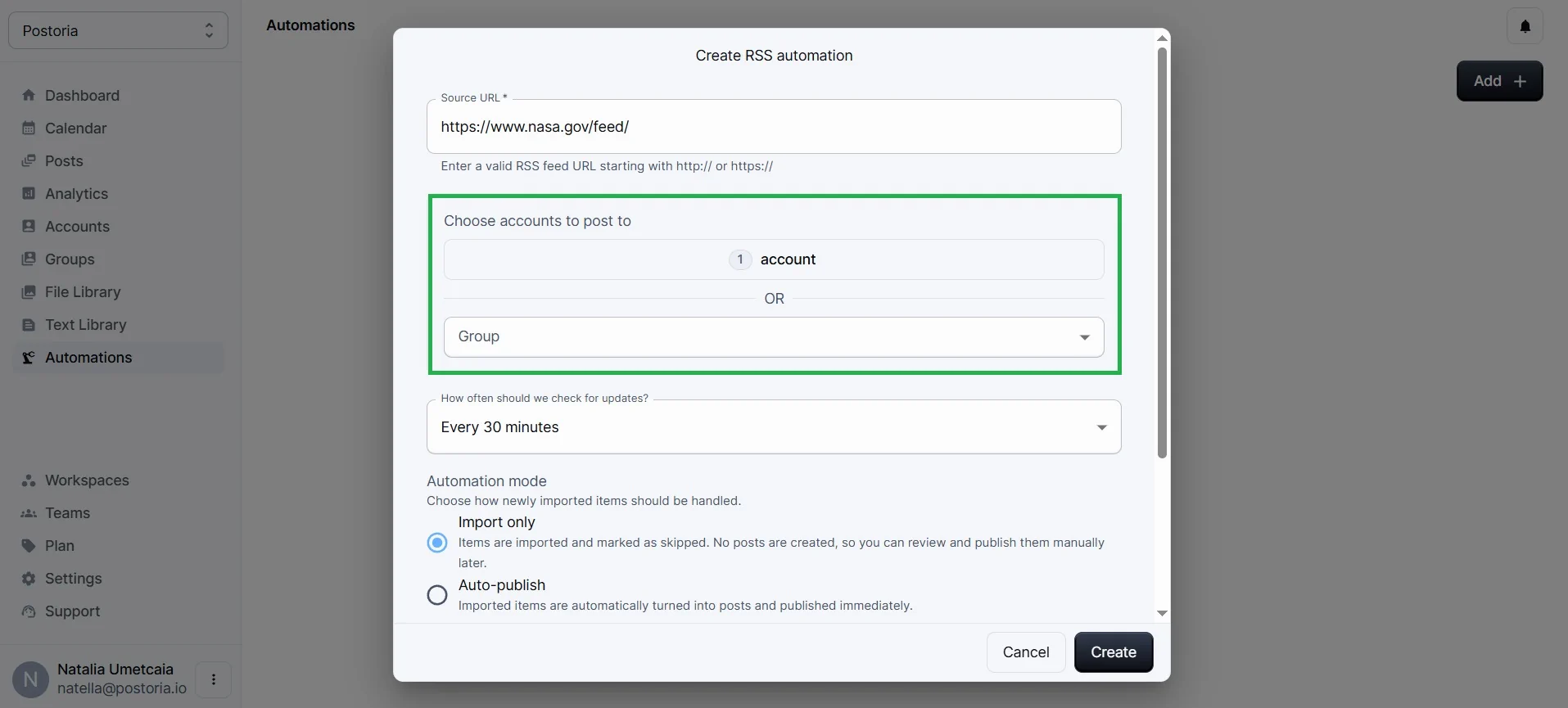
Step 3: Choose where to publish
You can select:
- Specific social accounts
- Or posting groups for multi-account publishing
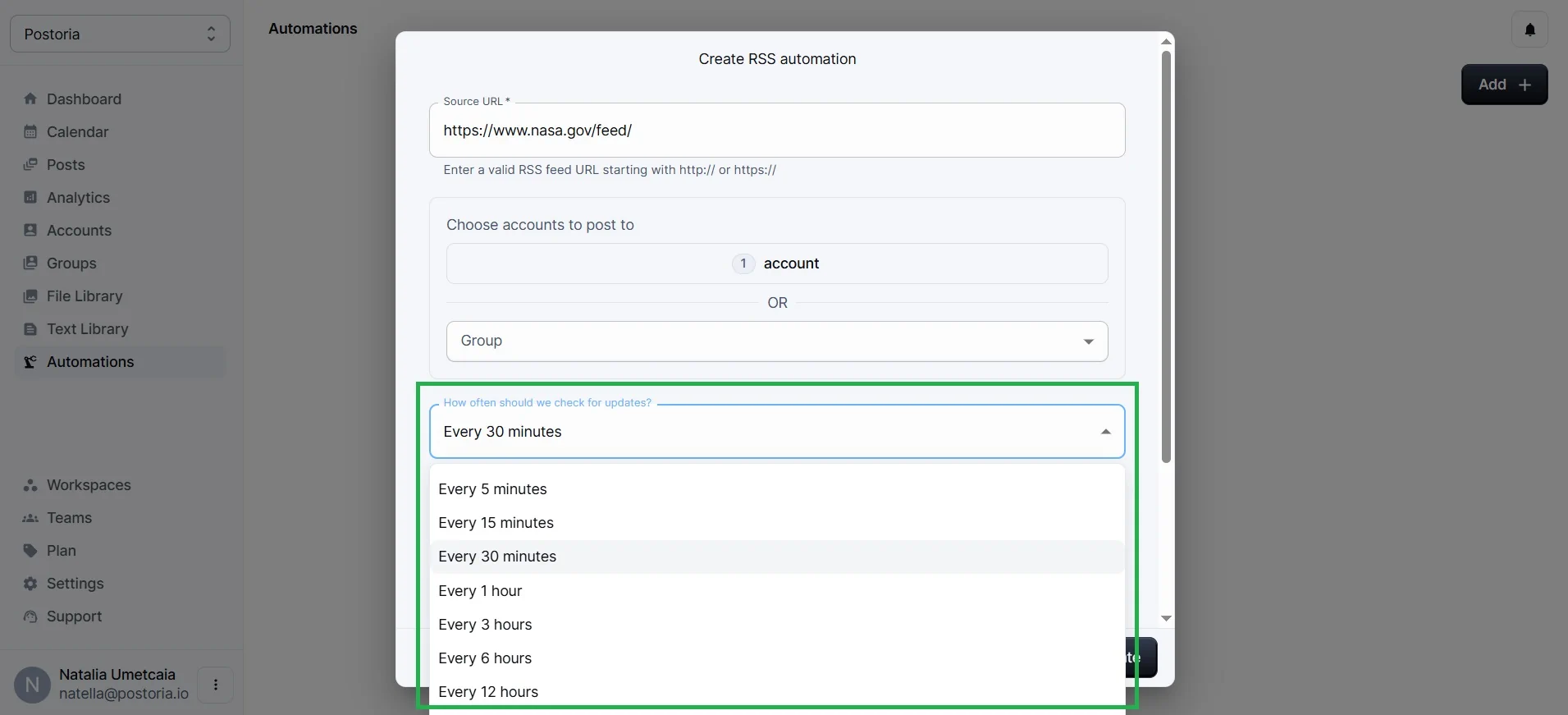
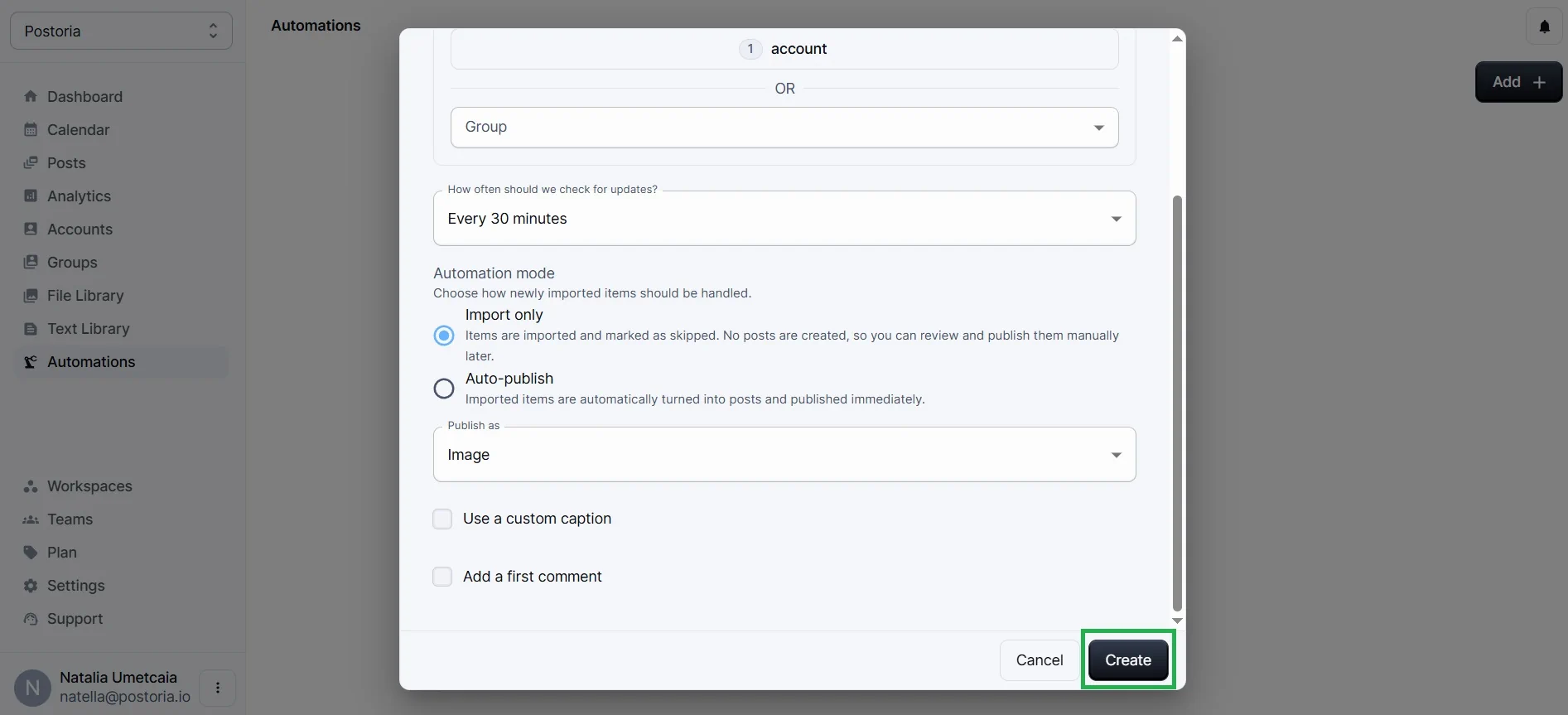
Step 4: Configure update frequency
Choose how often Postoria checks your feed. This determines how quickly your new posts appear on social media.
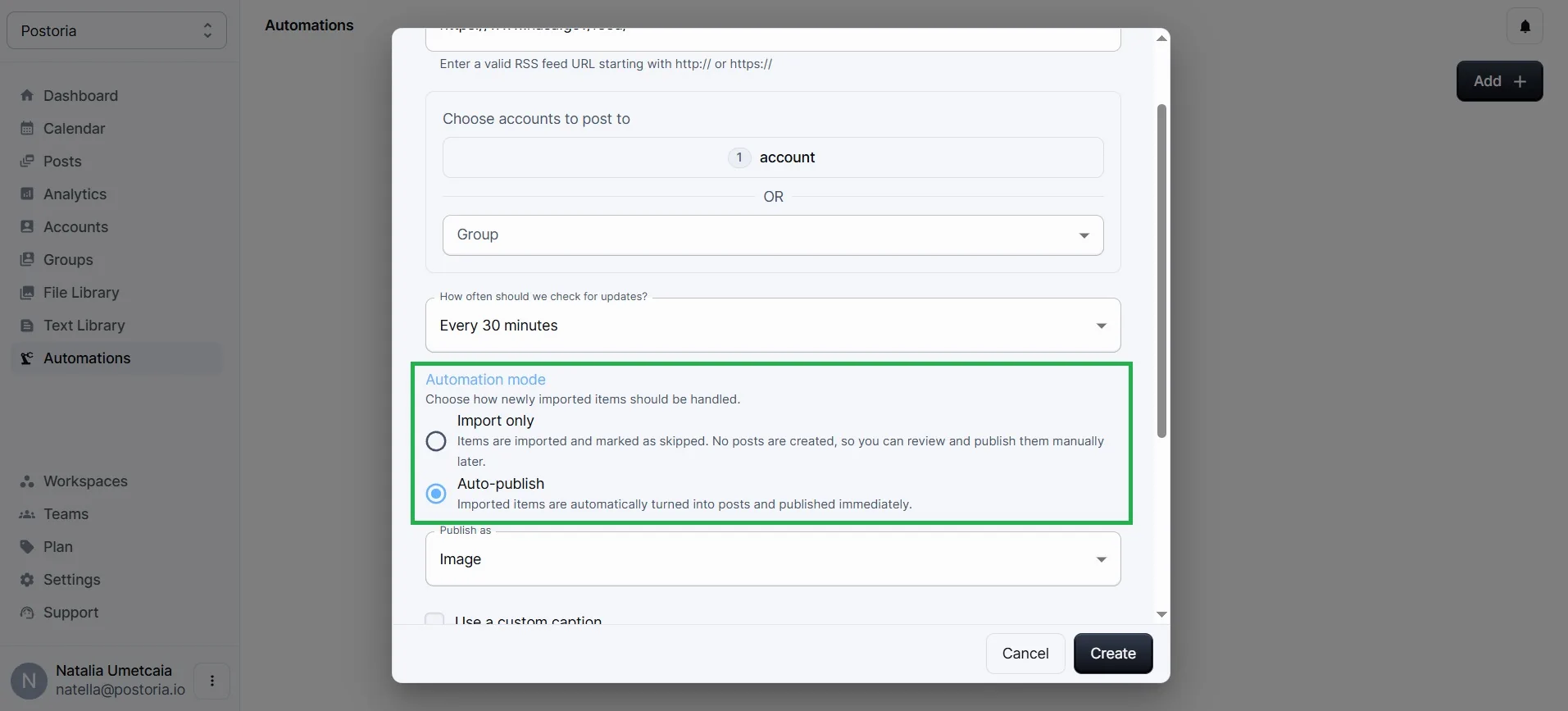
Step 5: Select automation mode
You have two options:
- Import only — feed items are imported for review. You can then create draft posts manually and publish or schedule them when ready.
- Auto publish — posts are published automatically.
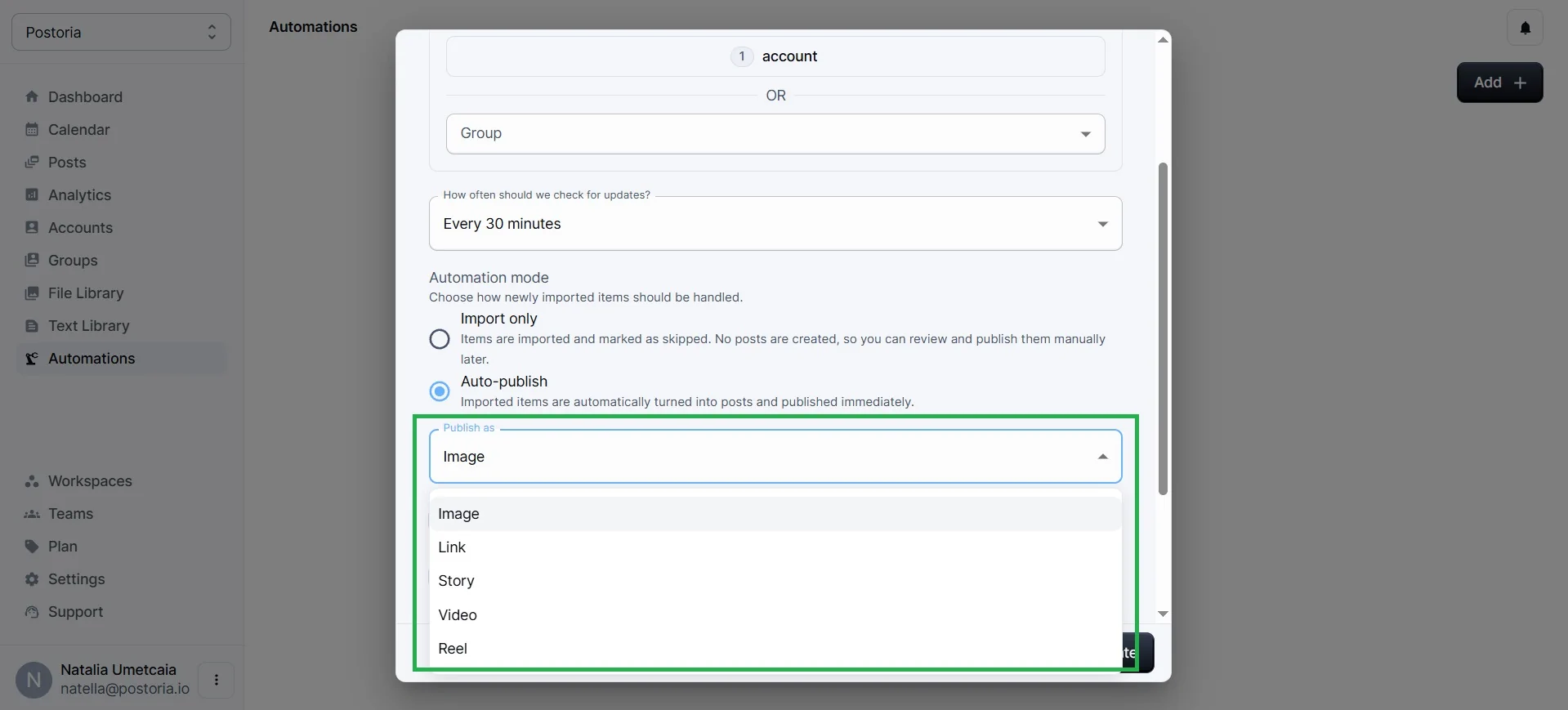
Step 6: Choose post format
Depending on your strategy, you can publish as:
- Image
- Link
- Story
This gives you flexibility across platforms like Instagram, Facebook, LinkedIn, and other social networks.
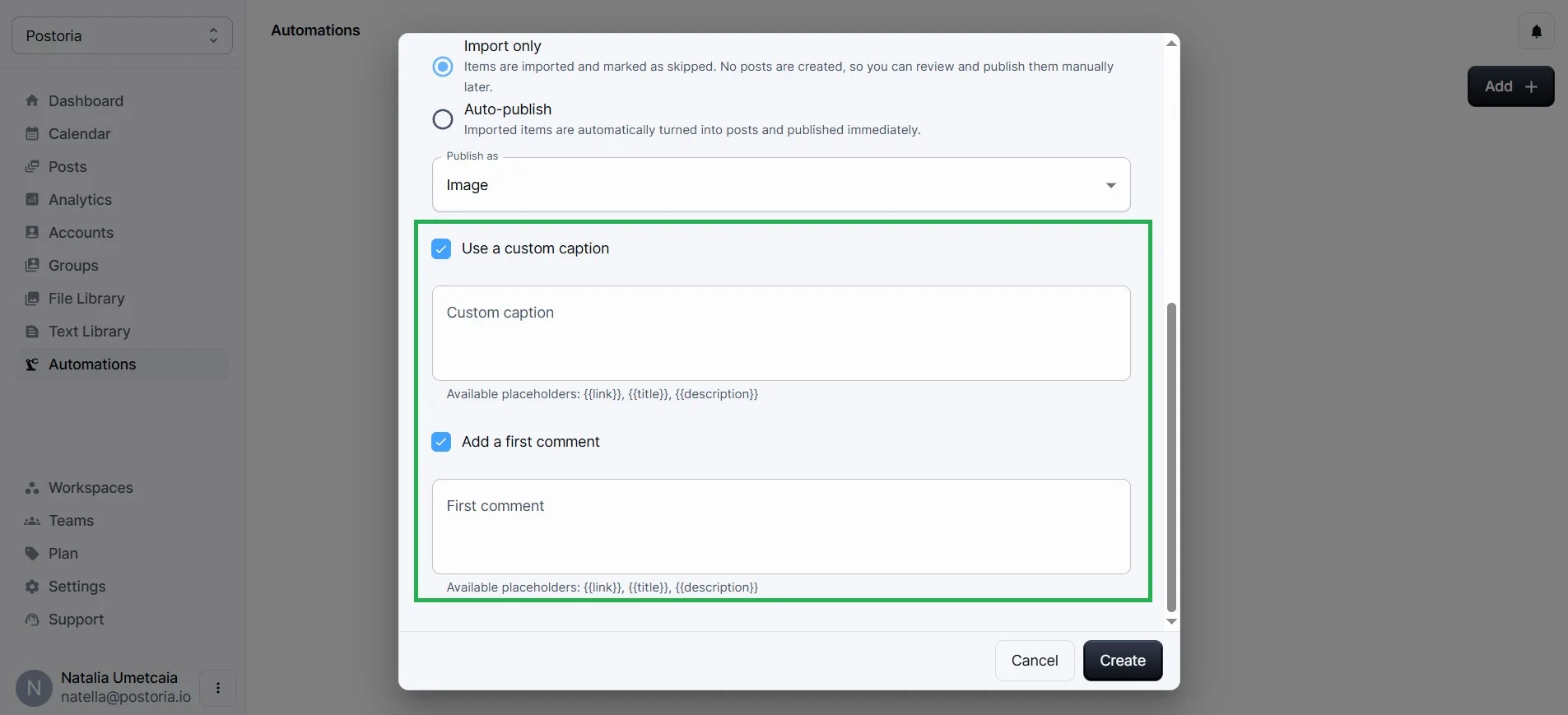
Step 7: Customize captions and add a first comment
You can use the original post title/content or enable custom captions.
You can also add a first comment.
Step 8: Create the automation
Click Create, and your RSS automation will go live.
Managing and editing your RSS automation
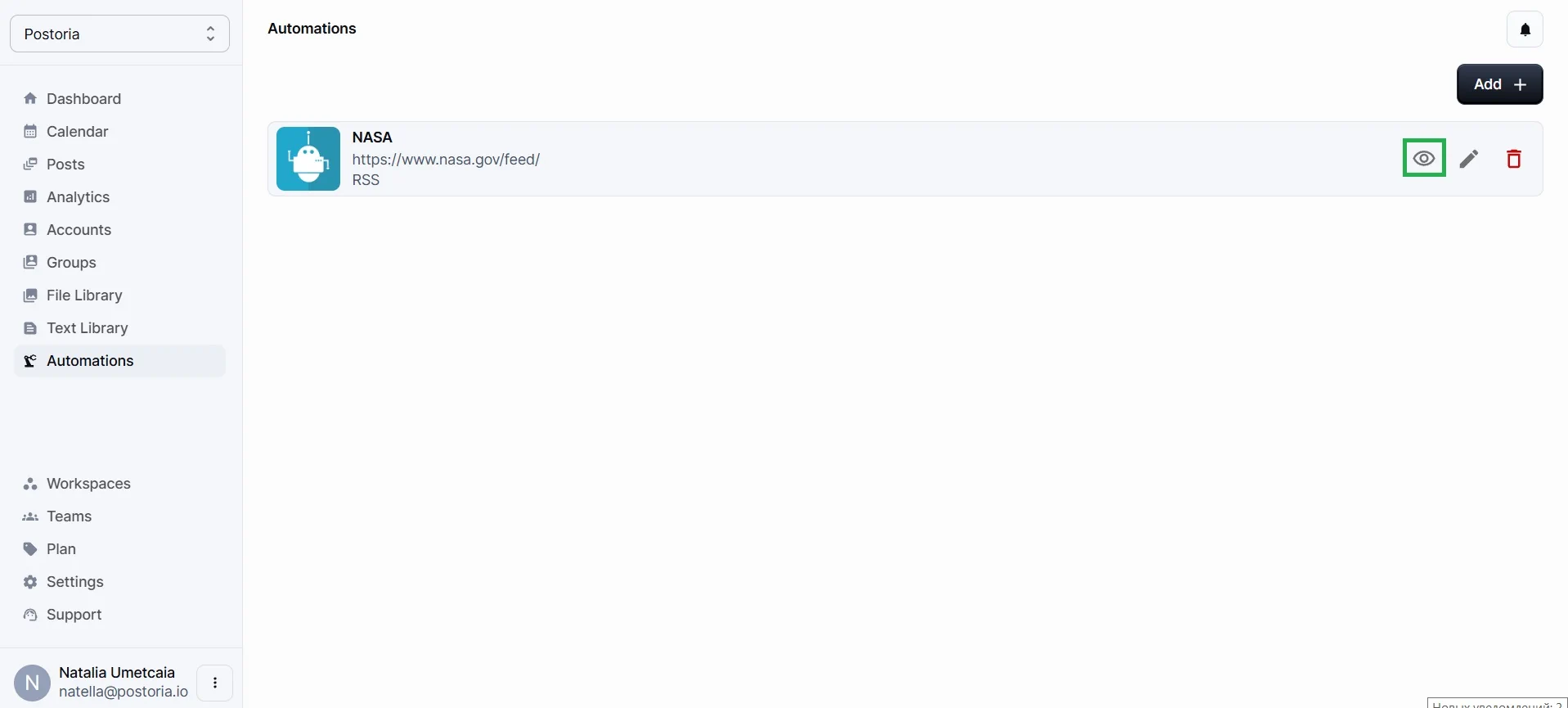
After creating the RSS automation, you can preview it using the eye icon.
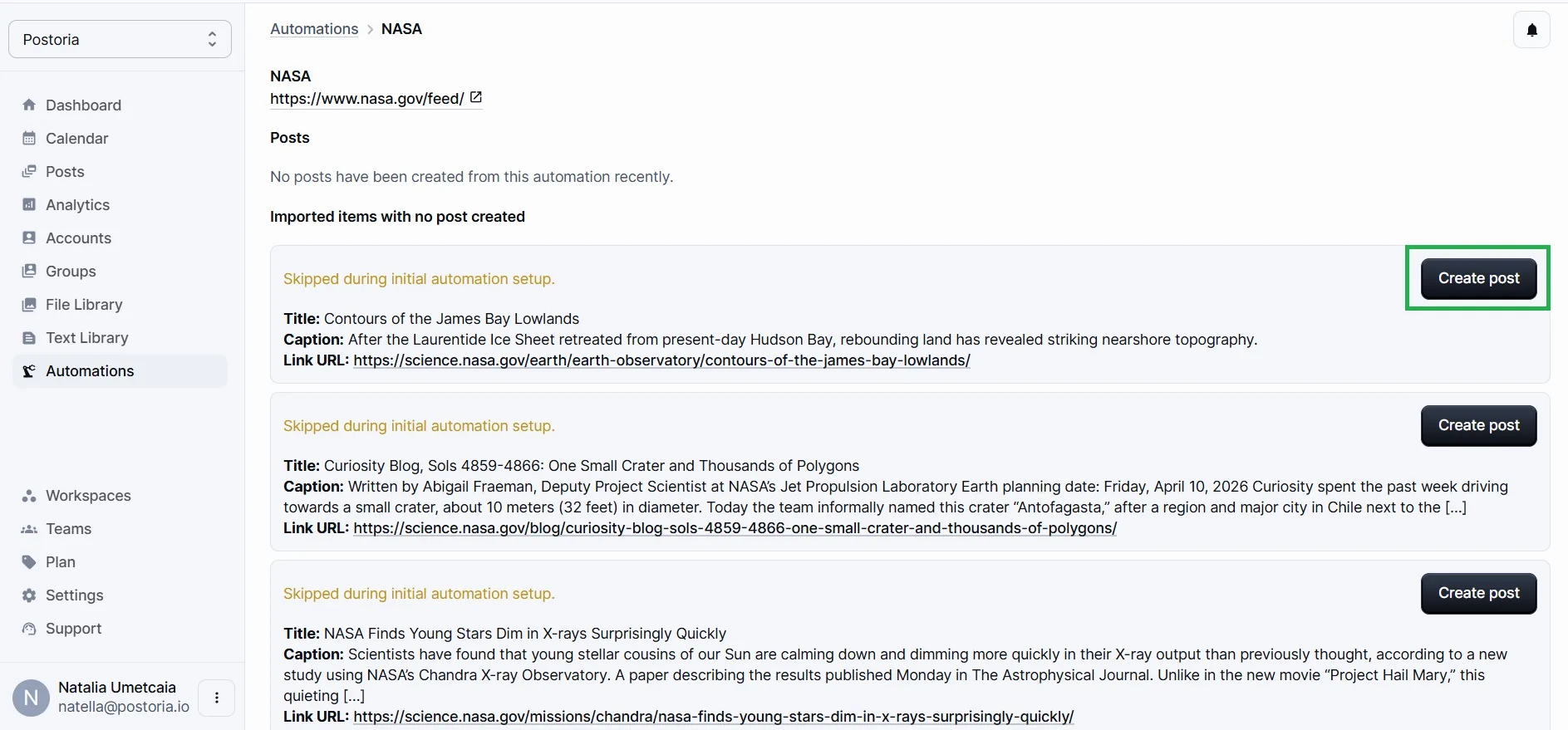
In the preview window, you can review fetched content and create a post manually by clicking Create post.
You can also open your RSS automation and edit it at any time.
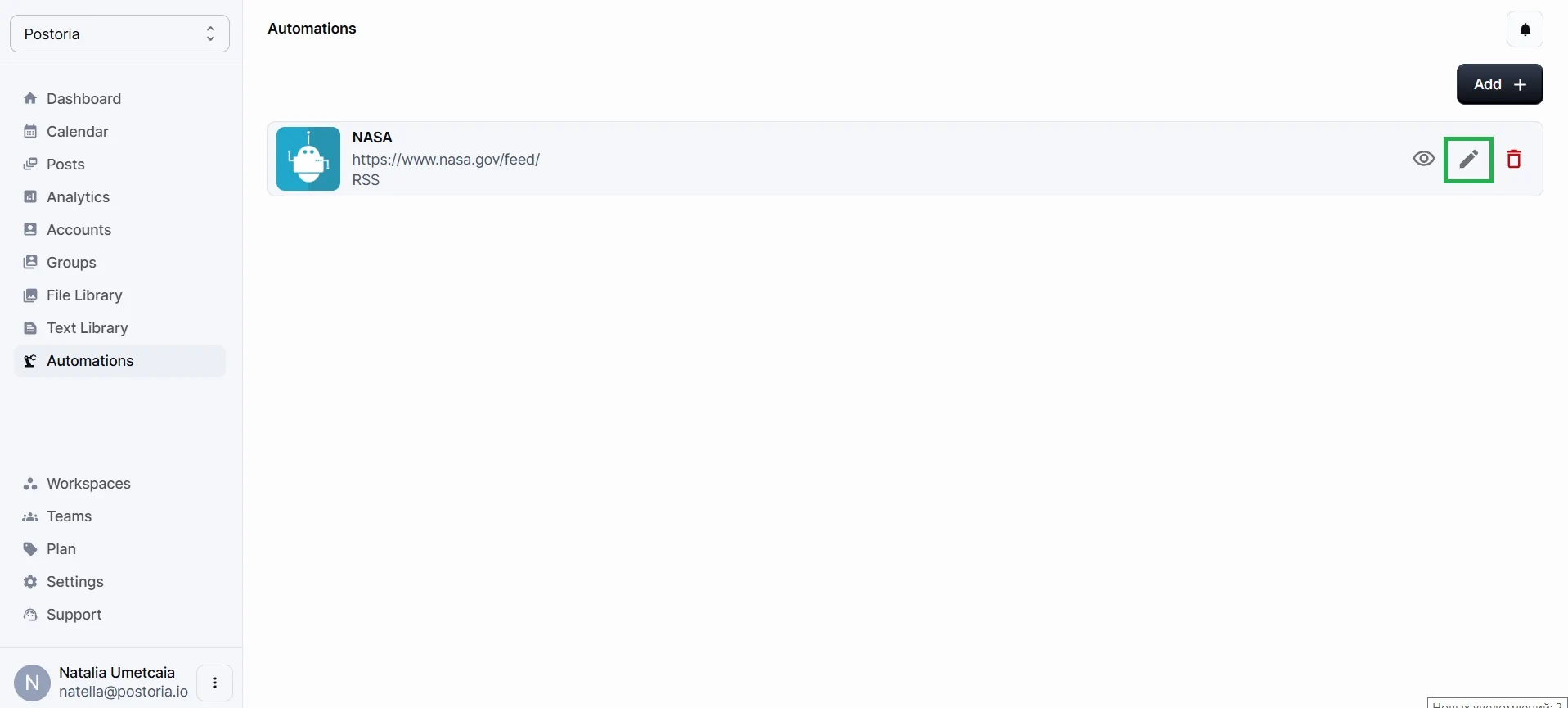
You can:
- Change post format (e.g., from link to video)
- Adjust check frequency
- Switch between import and auto-publish
- Update captions or add a first comment
This flexibility makes Postoria especially useful for scaling content distribution across multiple social networks.
Final thoughts
If you run a WordPress site, you already have everything needed to automate your content distribution.
With a simple /feed/ URL and Postoria, you can turn every blog post into a fully automated social media workflow.
This is one of the easiest ways to scale content without increasing your workload.