LinkedIn carousel posts: 7 PDF formats B2B teams can actually use
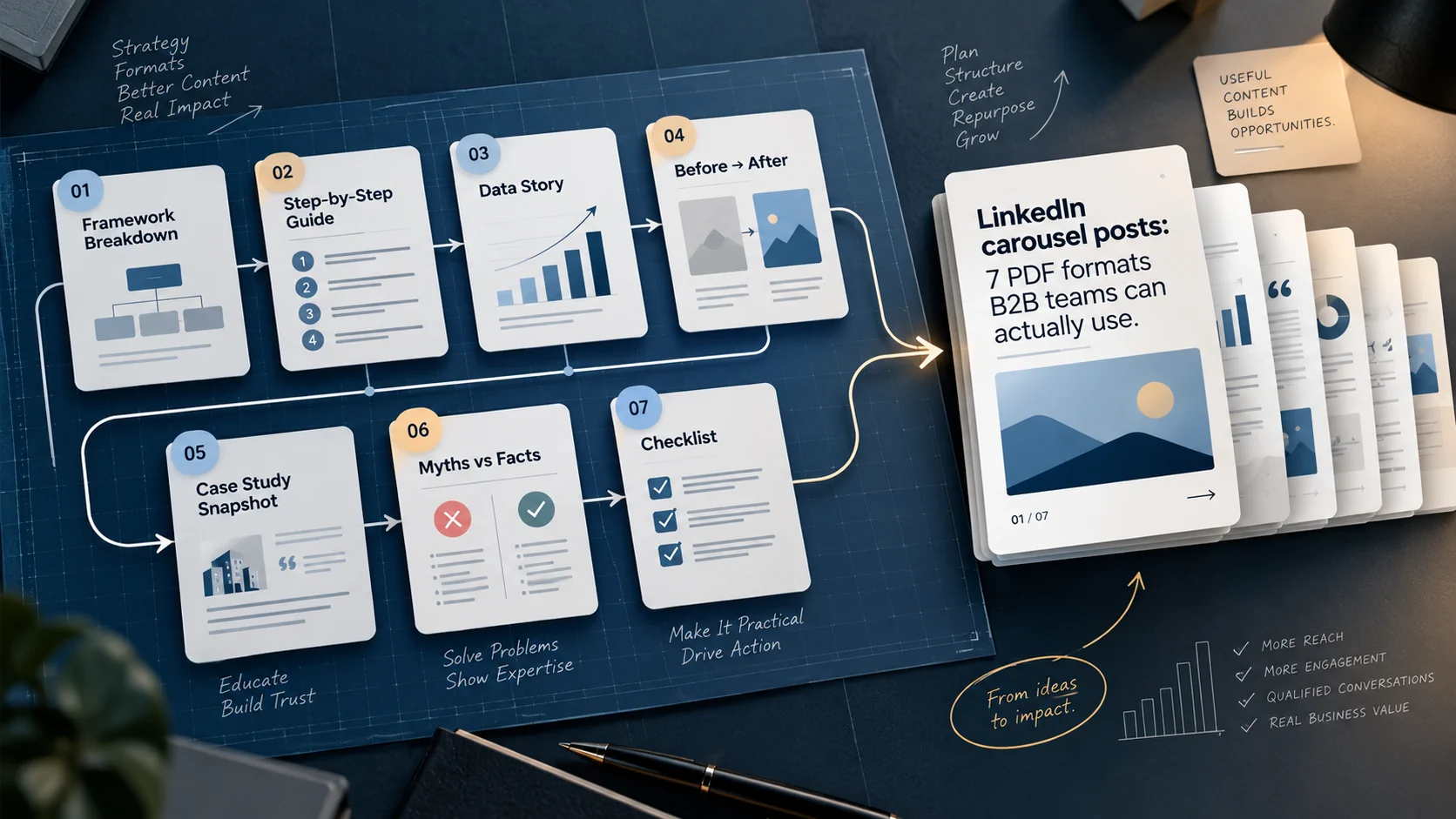
Your team already has the raw material for a useful LinkedIn carousel: a checklist someone uses before a launch, a decision you explain on sales calls, or a mistake you keep fixing for clients. The difficult part is choosing what belongs on each page.
A company presentation usually answers, “Why should you hire us?” A useful educational carousel answers, “What can you understand or do better after reading this?” Those are different briefs.
Start with one reader, one problem, and one useful outcome. Then choose a structure that makes the answer easier to follow.
Below are seven PDF formats with page-by-page outlines, example captions, and finishing checks. The examples are illustrative, not claims about actual clients or campaign results.
What we mean by a LinkedIn carousel
In this guide, a carousel means an organic document post: a multipage PDF readers can move through in the feed. It is not a paid carousel ad or a collection of separately uploaded images.
LinkedIn’s document-upload guidance accepts PDFs and several Office formats, with limits of 100 MB and 300 pages. It recommends PDF conversion, consistent page sizes, and a descriptive document title. Embedded animations and video are displayed as static content.
Those are technical boundaries, not editorial targets. For the examples here, we use six or seven pages so each document has room for an explanation without becoming a report. That is a starting point to adapt, not an algorithm rule.
Choose the format before opening a design tool
Pick the material you can substantiate, not the layout that happens to look impressive.
| What you already have | Best starting format | What the reader takes away |
|---|---|---|
| A repeatable quality-control routine | Checklist | A way to check their own work |
| A recurring mistake and its correction | Mistake teardown | A better decision next time |
| A process you can demonstrate | Step-by-step guide | A sequence they can follow |
| Two credible ways to solve a problem | Comparison | A choice based on constraints |
| A documented project with permission to share it | Case study | Evidence and a transferable lesson |
| A method your team actually uses | Decision framework | A way to organize a messy problem |
| A study or dataset you can explain accurately | Research snapshot | A finding, its limits, and an implication |
Do not turn an opinion into a case study by adding invented numbers. Do not turn a collection of statistics into a framework by giving it an acronym. The format should make the evidence clearer, not manufacture it.
1. The checklist: help someone catch an expensive omission
Use it for: a task with a clear moment of completion, such as launching a landing page, preparing a webinar, or handing off a project.
Example cover: “Before your next webinar: 5 checks beyond the slides.”
| Page | What to put on it |
|---|---|
| 1. The promise | Name the situation and the mistake the checklist helps prevent. |
| 2. Registration | Show how to test the signup journey with a fresh email address. |
| 3. Confirmation | Check that the confirmation includes the correct date, time zone, and joining instructions. |
| 4. Live session | Identify a host, a backup host, and a plan for a failed screen share. |
| 5. Follow-up | Prepare separate next steps for attendees and people who did not attend. |
| 6. Measurement | Decide which registrations, attendance events, and follow-up actions will be recorded. |
| 7. The reusable check | Present the five checks together with spaces for an owner and completion status. |
Write checks as actions. “Improve your webinar experience” cannot be checked. “Register with a test address and open the confirmation link” can.
Example caption: “The deck is ready. Is the rest of the webinar? Run these five checks before the invitation goes out.”
Useful ending: “Assign an owner to every unchecked item before launch.” The final page should help the reader use the checklist, not simply announce that your agency exists.
2. The mistake teardown: show the correction, not just the criticism
Use it for: a problem you can demonstrate without exposing a customer or making claims about a competitor you cannot support.
Example cover: “Your campaign brief says ‘drive engagement.’ Here is what is missing.”
| Page | What to put on it |
|---|---|
| 1. The symptom | Show the vague instruction exactly as a fictional example. |
| 2. The ambiguity | Explain that reactions, replies, and qualified inquiries would produce different creative decisions. |
| 3. The missing reader | Replace “our audience” with one role facing one situation. |
| 4. The missing action | Specify what that reader should be able to do next. |
| 5. The missing evidence | Add the approved demonstration, example, or source the post can use. |
| 6. Before and after | Show the vague brief beside the revised version using the same scenario. |
| 7. The repair tool | Offer a sentence readers can complete for their next brief. |
A usable repair sentence is: “For [reader] dealing with [situation], explain [decision] using [evidence], then invite [next step].”
Example caption: “‘Drive engagement’ is an objective-shaped phrase, not a creative brief. Here is how we would turn it into instructions a writer can use.”
Keep the tone diagnostic. The point is to show better work, not to make an unidentified customer look foolish. Our campaign brief template provides a longer version of the underlying planning exercise.
3. The step-by-step guide: teach one complete task
Use it for: a process with a visible input and output. A small task you can finish is a better subject than an entire discipline you can only summarize.
Example cover: “Turn a webinar transcript into three useful LinkedIn posts.”
| Page | What to put on it |
|---|---|
| 1. The outcome | Show the three intended outputs: an answer, a demonstration, and a decision aid. |
| 2. The input | Start with an approved transcript and identify who can verify the claims. |
| 3. Find a question | Select one audience question that the speaker answered clearly. |
| 4. Extract the answer | Write the answer in plain language and keep the speaker’s qualifications. |
| 5. Choose supporting material | Match each output to a relevant example, diagram, or demonstration. |
| 6. Review the drafts | Check the source, permissions, and whether each post stands on its own. |
| 7. Show the finished set | Put the three post openings together so readers see the transformation. |
Show at least one actual intermediate artifact. A page that says “extract insights” is not a step unless you demonstrate what counts as an insight and how it changes the output.
Example caption: “One transcript does not need to become thirty nearly identical posts. Start with one question and build three answers with different jobs.”
Useful ending: “Open your last transcript and highlight the passage that answers a real audience question. Start there.”
4. The comparison: help the reader choose, including when not to choose you
Use it for: a genuine tradeoff. Compare approaches under the same conditions rather than arranging the criteria so your preferred option wins every row.
Example cover: “Live webinar or recorded demo? Choose around the buyer’s question.”
| Page | What to put on it |
|---|---|
| 1. The decision | State the choice and the audience making it. |
| 2. What both can do | Establish the shared job: explain a product or process. |
| 3. Where live fits | Use a scenario requiring interaction or answers to unpredictable questions. |
| 4. Where recorded fits | Use a scenario requiring a repeatable explanation available on demand. |
| 5. The constraints | Compare preparation, attendance requirements, updating, and follow-up. |
| 6. The decision rule | Offer two or three conditional recommendations rather than one universal winner. |
| 7. The next action | Ask the reader to identify whether their current bottleneck is access, understanding, or unanswered questions. |
Treat the recommendations as your judgment and explain the reasoning. When the comparison involves products, verify current capabilities and avoid presenting temporary limits as permanent facts.
Example caption: “The better format depends on what the buyer still needs to understand. Use this comparison before committing to another live session.”
The reader should leave with a decision, not merely a list of differences.
5. The case study: make the evidence inspectable
Use it for: a real project where you have permission to share enough detail to support the lesson.
Example cover pattern: “How we reduced [defined problem] in [specific context].” Replace the brackets only with documented facts. Without those facts, use a worked example and label it accordingly.
| Page | What to put on it |
|---|---|
| 1. The finding | State the verified outcome and the relevant context. |
| 2. The starting point | Define the initial process or metric, the period, and who was affected. |
| 3. The constraint | Explain what could not change: budget, staffing, deadlines, or systems. |
| 4. The intervention | Show the specific change rather than a list of every service delivered. |
| 5. The evidence | Present comparable before-and-after information with labels, dates, and units. |
| 6. The limitations | Note other changes, a small sample, or anything the result does not establish. |
| 7. The transferable lesson | Explain what another team should check before trying the same approach. |
Example caption template: “We changed [process], then observed [result] over [period]. This breakdown shows the change, the measurement, and the limitation to keep in mind.”
Do not turn an observed improvement into a causal guarantee. A decline in revision time after a new process is evidence worth discussing; it does not establish that every other team will see the same decline.
An anonymized case still needs permission and a review for identifying details. Removing the company name is not enough when the screenshots, dates, and project description reveal who it is.
6. The decision framework: make judgment visible
Use it for: a recurring decision where several factors matter. Introduce the method as a working tool, not a scientifically validated model unless you have that evidence.
Example cover: “Which content ideas deserve this week’s production time?”
| Page | What to put on it |
|---|---|
| 1. The decision | Explain the constraint: more ideas than production capacity. |
| 2. The three checks | Introduce audience relevance, decision value, and evidence readiness. |
| 3. Relevance | Show what distinguishes a real audience problem from a trend with no connection to the business. |
| 4. Decision value | Explain what the reader will understand or do differently. |
| 5. Evidence readiness | Separate ideas that can be supported now from those needing research or permission. |
| 6. A worked comparison | Apply the same checks to two fictional ideas and explain the different decisions. |
| 7. The blank version | Give readers a compact worksheet they can reuse. |
Make the difficult part explicit. An idea can be relevant but not ready because no one has verified the answer. The framework should allow “research first,” not force every candidate into publish or reject.
Example caption: “When everything sounds like a good content idea, the calendar stops being a strategy. These three checks help us choose what is ready to make.”
Useful ending: “Test the method on the next five ideas in your backlog. Change the checks when they do not reflect your business.”
7. The research snapshot: separate the finding from your interpretation
Use it for: one finding from a credible study, an original analysis, or a carefully described internal dataset.
Example cover pattern: “What [specific finding] means for [specific audience].” Avoid vague covers such as “The future of B2B” when the source only addresses a narrow sample.
| Page | What to put on it |
|---|---|
| 1. The finding | State one result with enough context to understand its scope. |
| 2. The source | Identify the publisher, date, population, and method relevant to the finding. |
| 3. The evidence | Reproduce or redraw only what you are permitted to use, with units and a readable citation. |
| 4. The limitation | Explain what the data does not represent or establish. |
| 5. Your interpretation | Clearly distinguish your inference from the source’s conclusion. |
| 6. A practical test | Suggest a small action the reader can evaluate in their own situation. |
| 7. Sources and question | Provide the source destination and ask a question that tests the interpretation. |
Do not make a self-reported survey answer sound like measured behavior. Do not mix studies with different populations to create an unsupported trend line.
Example caption template: “[Source] found [finding] in [population and period]. Our interpretation is [implication], with one important limitation: [limitation].”
A source link buried on the last page is not enough for a chart likely to be shared by itself. Put a short attribution beside the chart, then the fuller reference at the end.
Write the opening and ending before designing the middle
The opening page makes a promise. The final page should deliver something the reader can use because they read the document.
Compare “Our approach to operational excellence” with “Three handoffs to check before your next product launch.” The second gives you a concrete scope. It also tells you what to remove from the middle pages.
A useful final page might contain a completed example, a compact checklist, a decision rule, or a link to a genuinely relevant resource. Avoid making the answer conditional on commenting a keyword when the document could simply provide it.
The caption should explain who the document is for and why it matters. It does not need to repeat every page. For a link-based next step, use a relevant destination and consistent tracking; our UTM tracking guide explains Postoria’s link settings. Do not assume those settings automatically rewrite links already embedded inside an uploaded PDF.
Design for someone reading without your presentation
Use one consistent canvas size. A portrait 4:5 layout, such as 1080 by 1350 pixels in a design tool, is a reasonable starting point to test; square pages can also work. This is a design recommendation, not a required LinkedIn dimension or a promise of higher reach.
Give each page a headline that makes a point. “A backup host needs access before the event” teaches something. “Operations” merely names a category.
Use body text large enough to read at the size the document occupies on a phone. Preview it on a real device rather than trusting a desktop canvas at full zoom. Cut text before shrinking it, keep contrast strong, and do not rely on color alone to distinguish alternatives.
Keep text selectable in the exported PDF where possible, check reading order and document accessibility in your authoring tool, and offer a text version for substantive guides. Summarize the core answer in the caption so the post is not useful only to people who can read the visual pages.
Before publishing, inspect the exported file, not just the source deck. Look for missing characters, clipped lines, unreadable citations, and accidental internal notes. Remember that LinkedIn does not let you replace the document inside an existing post.
Publish the document, not a promise to finish it later
Postoria supports LinkedIn PDF document posts. Create the post, select the LinkedIn destination, attach the finished PDF, write the caption, and choose whether to publish immediately or schedule it. Postoria accepts one PDF per LinkedIn document post, up to 100 MB, without mixing it with images or videos in the same post.
Review the PDF and caption as one package. A careful document can still be undermined by a caption that overstates its findings. When another person needs to sign off, content approval lets them review the prepared post before release.
After publication, check the live document and any destination links. Record the format, topic, intended audience, and goal in your content log so you can compare like with like later.
Evaluate usefulness, not just the number of pages
Choose the success question before publishing. For a checklist, it might be whether relevant people use it or ask a better follow-up question. For a decision guide, it might be qualified visits to a related resource or conversations that refer to the framework.
Use the metrics actually available for the account and post type. Do not calculate a fictional slide-completion rate from ordinary impressions or clicks. Combine the available post analytics with destination analytics and qualitative feedback.
Compare several documents with similar objectives over the same observation window. Changing the topic, audience, format, and offer at once makes it difficult to explain why one post performed differently.
For your next carousel, choose the format for which you already have the strongest material. A useful six-page explanation of a real problem is a better starting point than twenty polished pages built around a vague claim.