Social Inbox is here: keep the conversation going in Postoria
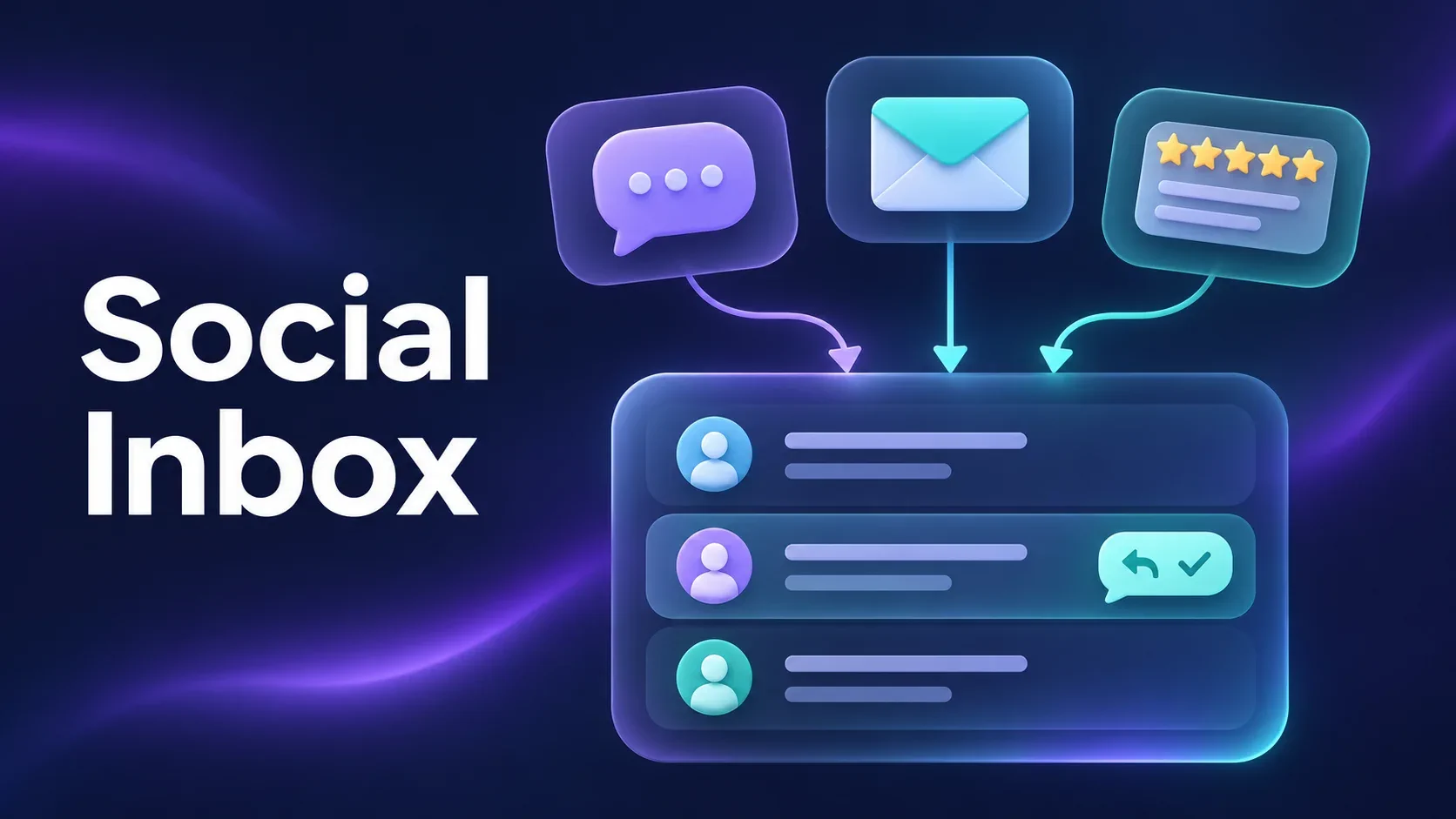
Social Inbox is now available on every Postoria plan, including Free. You can read and reply to supported comments, messages, and reviews from the same workspace where you manage your social publishing.
A post can start a conversation long after you publish it. Someone asks about a product under a video, another person sends a private message, and a customer leaves a review. Social Inbox brings those conversations into one place so you can see what needs a response and answer without repeatedly switching between apps.
See what needs your attention
Open Social Inbox to browse conversations from the supported accounts in your current workspace. Filter by social network, account, conversation type, or status to focus on the work at hand.
The Unanswered view helps you find conversations waiting for a reply. Open one to read the messages, select the comment or message you want to answer, and send your response. Post text, previews, and links to the original help you understand the context when the network provides them.
Replies stay with their conversation. You can close a conversation when you are finished and reopen it when you need to return to it. Where the network supports attachments, you can also include media in your reply.
For example, you might start the morning with unanswered Instagram messages, respond to a question under a TikTok video, and finish by thanking a customer for a Google review, all from the same workspace.
Which accounts can you use?
Social Inbox supports different kinds of conversations on each network:
- Facebook Pages: comments and Messenger conversations.
- Instagram: comments and direct messages.
- Threads: replies and mentions.
- LinkedIn Pages: comments and mentions of your organization.
- TikTok Business: comments and replies.
- Telegram: messages through connected bots and comments in linked channel discussion groups.
- Google Business Profile: customer reviews and your replies.
Available actions depend on the account type, connection permissions, and the network’s own rules. For Telegram channel comments, the bot also needs access to the linked discussion group.
Turn it on for your workspace
The workspace owner can enable Social Inbox in a few steps:
- Open Workspaces and edit the workspace you want to use.
- Turn on Enable Social Inbox.
- Choose Maximum incoming comments per post and save.
- Open Social Inbox from the sidebar and check Connected accounts using the settings icon. Reconnect any accounts that need additional permissions.
Social Inbox starts with a limit of 10 incoming comments per post, adjustable to 25, 50, 100, or 200 in the workspace settings. Your own replies do not count, and the setting does not limit direct messages or reviews.
Once a post reaches its limit, Postoria stops collecting new comments for that post. You can still answer comments already in the inbox. Increasing the limit allows future comments to arrive, but does not automatically recover comments skipped while the limit was reached.
Keep each workspace’s conversations together
Social Inbox follows your workspace permissions. Owners and Managers can reply and close conversations. Members with the Client role can read them. Team access remains subject to your plan’s team features.
Keep conversations for each brand or client in its own workspace, alongside the accounts and content you already manage there.
Read the Social Inbox feature overview for supported conversation types, setup details, and limits, or open Workspaces to get started.
Tag:
product updates